Skip to content

AI • Developer Tools • 2025

PDF Penguin

AI-powered PDF to JSON conversion for structured, usable data.

TL;DR

Problem
Getting structured data out of PDFs means technical tools, manual area selection, or 15+ minutes of setup.
What I did
Working solo, I tested Tabula, Acrobat, and DocParser as a first-time user, then designed and built a drag-and-drop, plain-language PDF-to-JSON tool in 2 weeks.
Outcome
Under 10 seconds to first output with zero setup, and 2 clicks from upload to export.

Role

Founder

Product Designer

Frontend Developer

Timeline

2 weeks

Design MVP · Pre-launch

Team

Solo Project

End-to-end ownership

Skills

Product Design

AI Integration

Frontend Dev
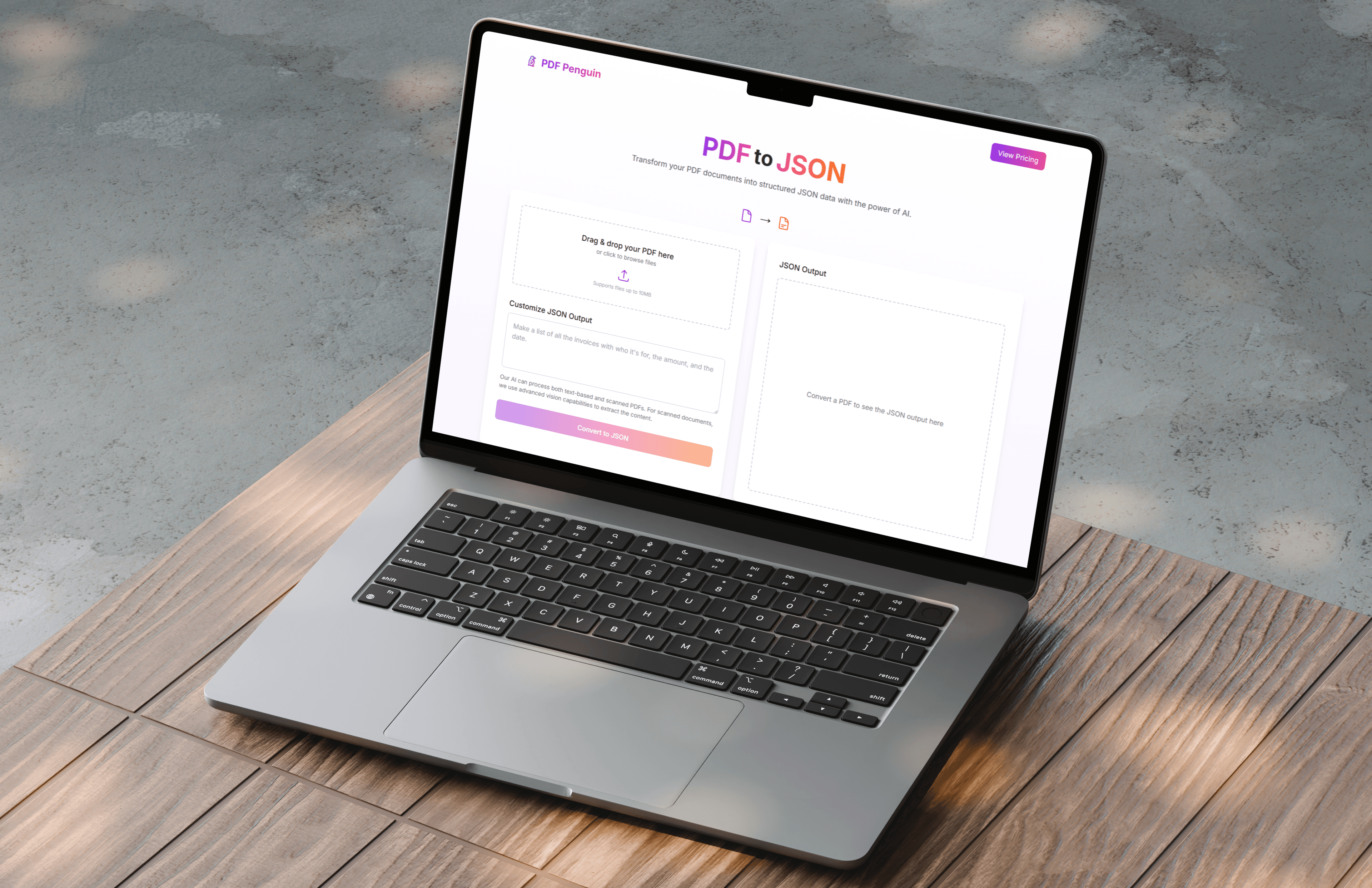
PDF Penguin Interface

Overview

PDF Penguin converts unstructured PDFs into clean, structured JSON data using AI. Drag, drop, describe what you need — get instant results.

I built this while developing EZ Recipe, where I needed to extract USDA nutrition data from messy PDFs. Existing tools were too technical or unreliable, so I created something simpler. PDF Penguin has since evolved into a standalone product with broader applications.

Problem

Non-technical users struggle to extract structured data from PDFs. Existing tools require setup, technical knowledge, or produce inconsistent results.

01

Tools are too technical

Tabula requires manual area selection. DocParser needs schema expertise. Adobe exports break formatting.

02

Inconsistent results

Scanned PDFs fail. Multi-page documents break. Output requires extensive cleanup.

03

Slow time-to-first-output

Users spend 15+ minutes on setup, configuration, or manual data copying.

"I just need to get this table data into a spreadsheet, but the PDF is a mess."

— Common user frustration

Research

I tested Tabula, Adobe Acrobat, and DocParser as a first-time user with minimal technical background.

Tabula

Install → select area → export. 10–15 min setup.

Adobe Acrobat

Open → Export → fix formatting. 5–10 min per doc.

DocParser

Create parser → define rules → run. 15–30 min upfront.

PDF Penguin

Drag & drop → describe → copy. <10 seconds.

Key Insight

Zero-config wins. Competing tools expect users to know schemas and export settings. PDF Penguin should require zero setup.

Solution

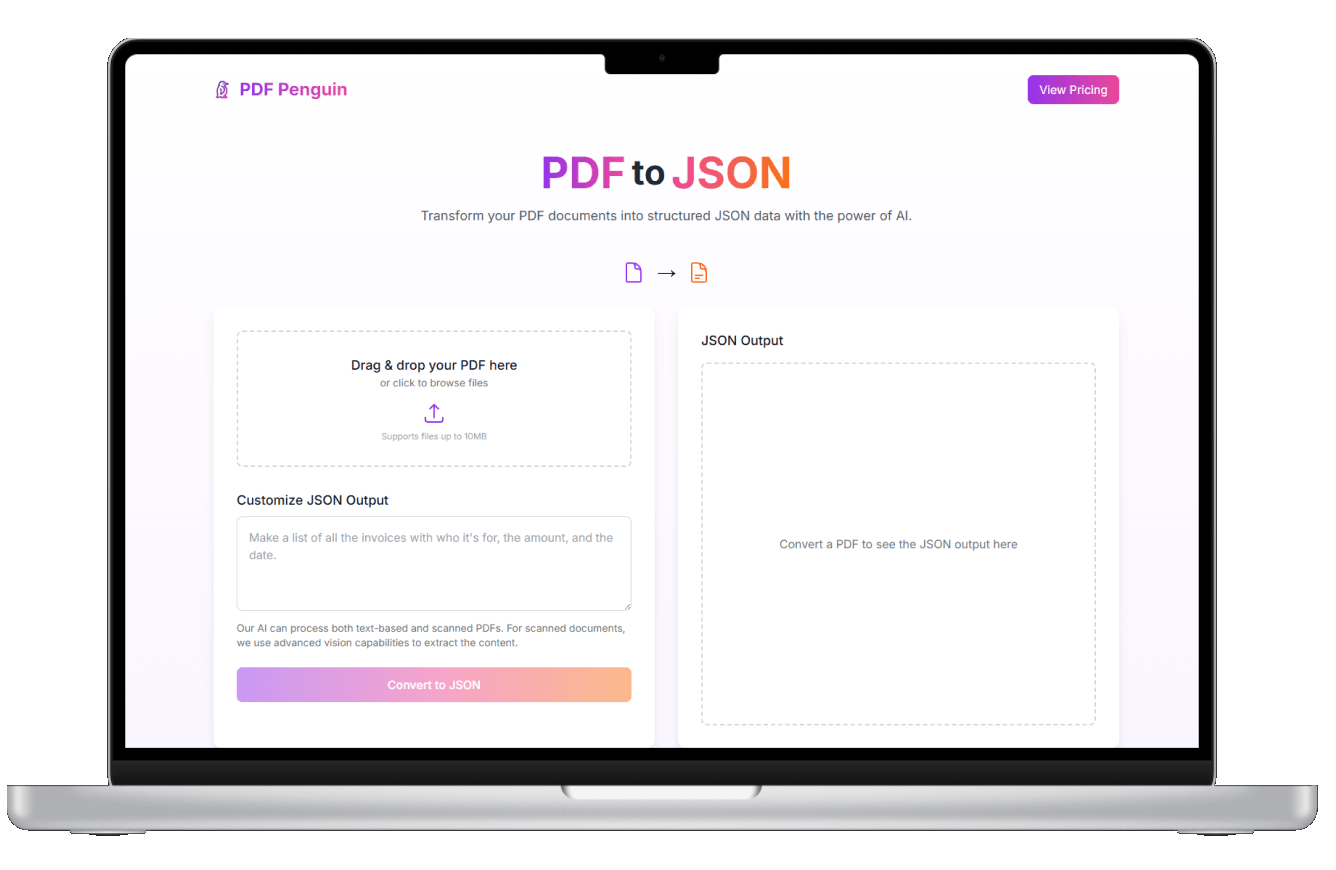
A two-panel interface: drag and drop PDFs on the left, describe your desired output in plain language, get clean JSON on the right.

User Flow

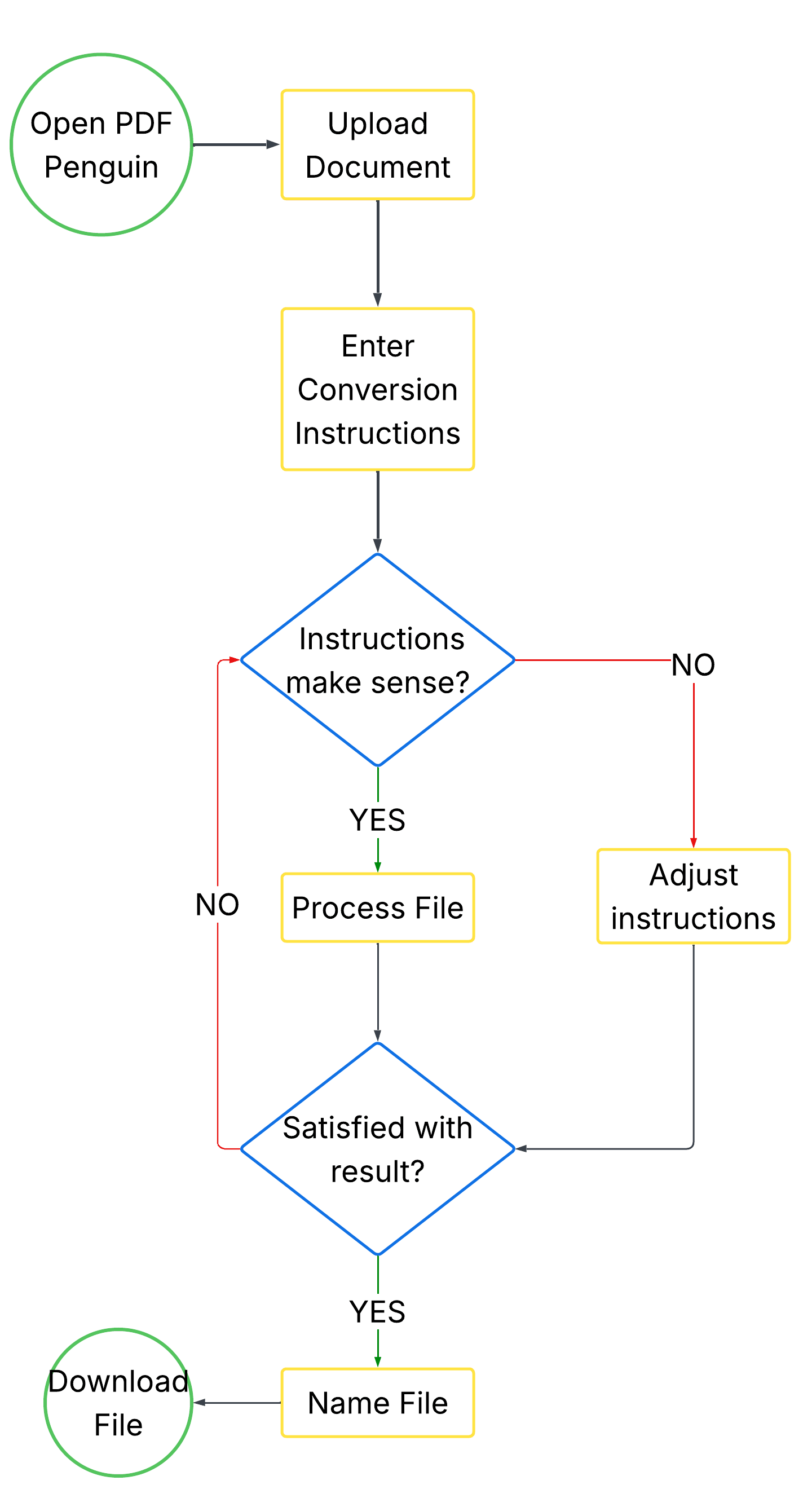
PDF Penguin User Flow Chart

Upload & Process

Drag PDF → AI analyzes structure → Extracts data based on prompt

Customize Output

Describe structure in plain language → Preview results → Iterate

Export & Save

Copy JSON → Save to library → Access anytime

Design Principles

Zero setup: No installation, no configuration, no learning curve.

Natural language: Describe what you want, not how to extract it.

Instant feedback: See results immediately, iterate quickly.

Design Process

From sketches to high-fidelity prototypes through rapid iteration.

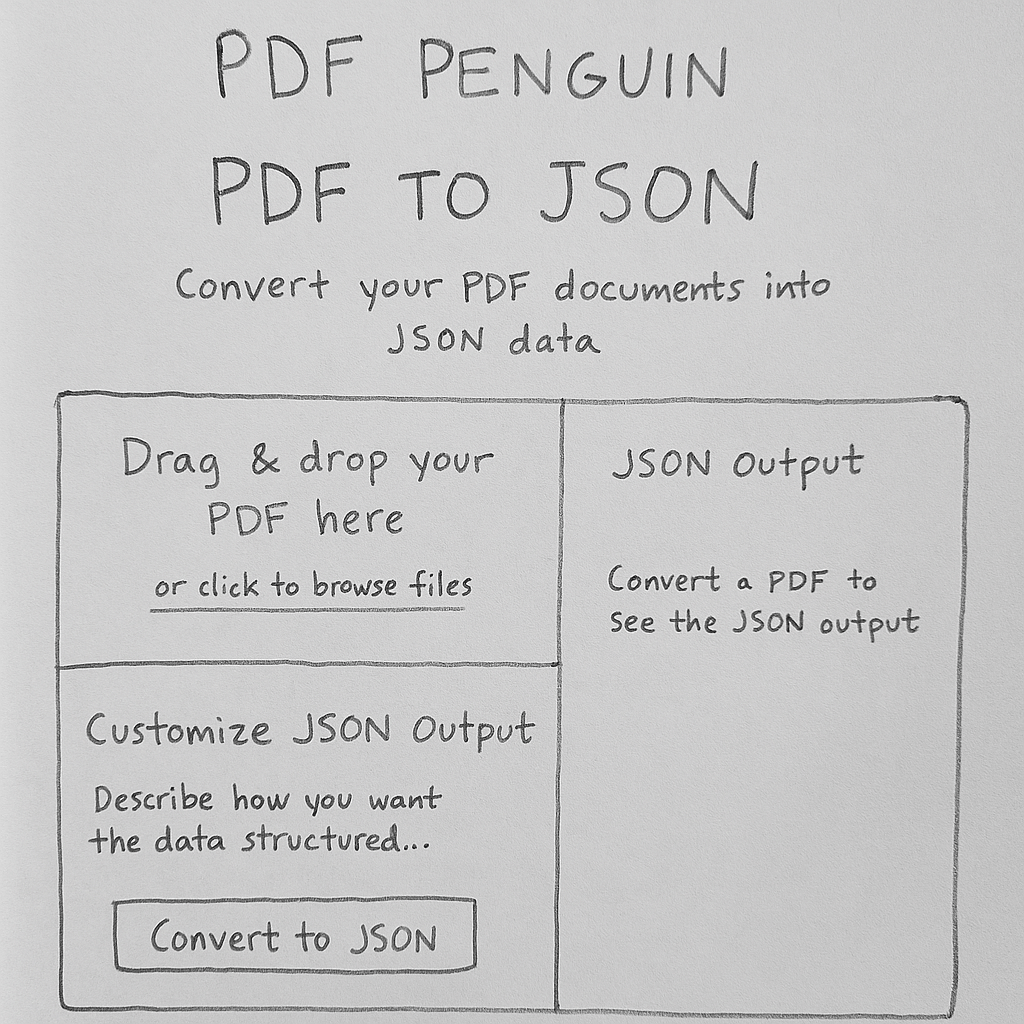
Initial Sketches

Early exploration of layout concepts and interaction patterns.

PDF Penguin Initial Sketches

Lo-Fi Prototypes

Testing the upload, prompt, and output flow with minimal styling.

Testing Insights

  • • Two-panel layout preferred for immediate visual feedback
  • • Prompt field needed placeholder text to guide AI instructions
  • • Error states required helpful messaging with next steps

Final Product

Built with React + TailwindCSS, integrated OCR and OpenAI APIs, deployed via Vercel.

PDF Penguin Final Product

Design Decisions

Key decisions that shaped the final product.

Why a two-panel layout?

Immediate feedback. Users see results as they type prompts — no page refreshes, no waiting. The familiar pattern (think code editors) reduces cognitive load.

Why natural language prompts instead of forms?

Non-technical users don't know schema syntax. Describing output in plain English ("Extract all product names and prices as a list") lowers the barrier to zero.

Why JSON as the primary output?

Developers need structured data. JSON is universal — works with APIs, databases, and spreadsheet imports. Future versions will add CSV/XML export.

Why include a library feature?

Users often process the same document types repeatedly. Saving past parses lets them reference outputs, compare results, and build workflows.

Outcomes

<10s

Time to first output

90%+

Parse success rate

0

Setup required

2 clicks

Upload to export

Learnings

What I learned building this product.

01 AI does the work; UX makes it usable

AI capability alone isn’t a product. The model does the heavy lifting; the drop zone, plain-language prompt, and instant preview are what make it usable for non-technical people.

02 Stripping features is harder than adding them

I had to constantly resist scope creep. Every "nice to have" feature threatened the two-click simplicity that makes the product work.

Next Steps

01

User authentication and upload history

02

CSV and XML export formats

03

Improved support for scanned/low-quality PDFs

04

API access for developer integrations

Final Thoughts

PDF Penguin is about making powerful technology accessible to everyone, regardless of technical background.

Every decision, from the two-panel layout to natural-language prompts, came from testing Tabula, Acrobat, and DocParser as a first-time user and seeing where they broke down. PDF Penguin started as a tool I needed for EZ Recipe; it’s now a core part of my toolset and continues to evolve.